
Do Not Disturb is a useful feature for minimizing notifications and distractions when you need to focus. It has been around for more than a decade, and its core functionality has largely remained the same. However, for some people, it may not be strong enough.
I still find myself checking notifications to see what I missed, even with Do Not Disturb enabled. As a result, I’ve started skipping DnD and using Airplane mode instead, which helps me stay more focused. I use an iPhone, but my reasoning can apply to Android users as well.
Do Not Disturb has its limitations
Do Not Disturb was introduced all the way back in iOS 6, and it blocks incoming calls, alerts, and notifications from various apps. However, in the Settings app, you can alter what can and cannot break through the setting when enabled.
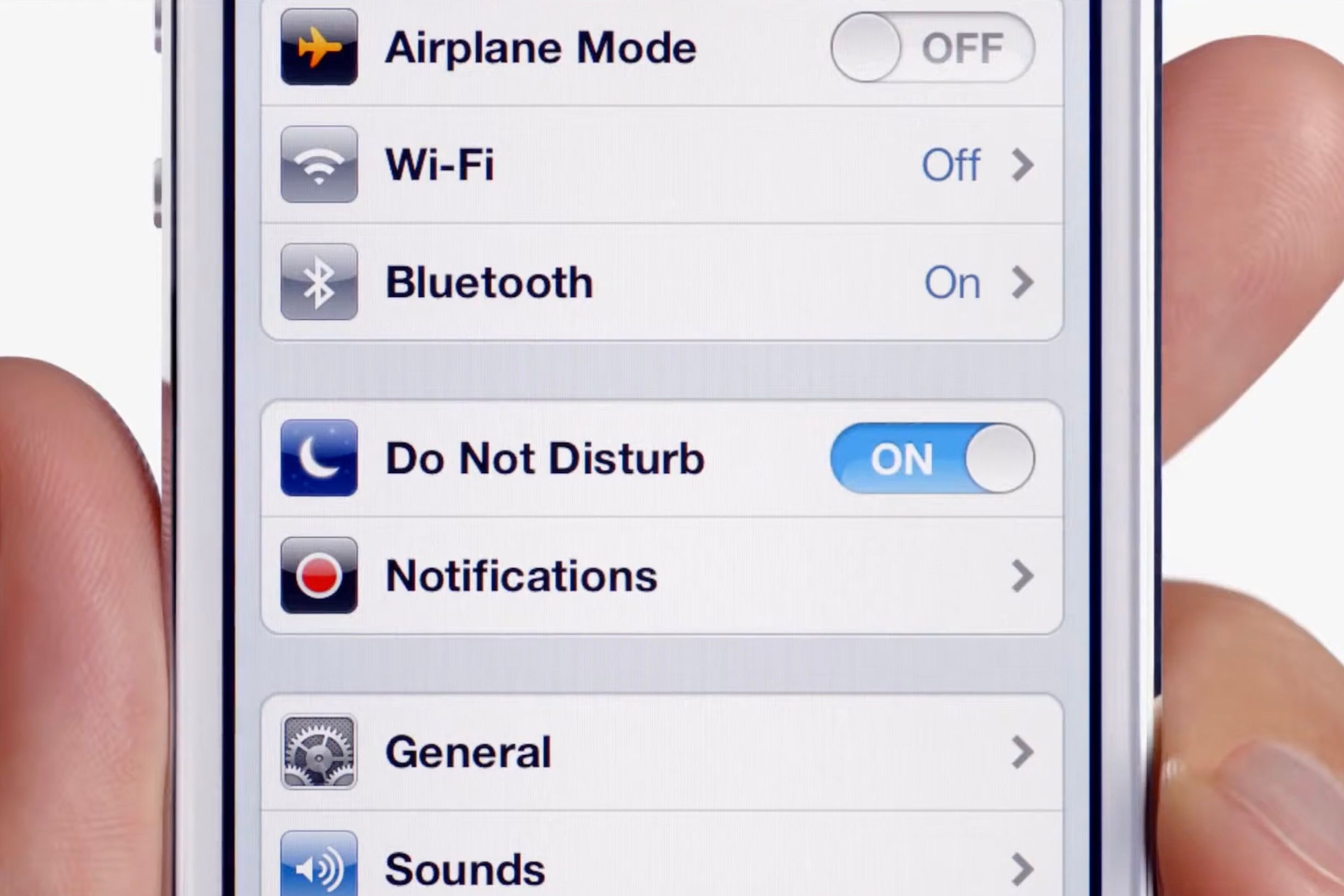
The feature was enhanced in iOS 15 with the introduction of different Focus modes. This allowed you to create different Do Not Disturb settings for different occasions—like when at work, working out, or in an appointment.
While Do Not Disturb does its job well—and has been doing so since its introduction—there are still some cracks in the feature. I have had instances where it is enabled, and notifications still break through, even when they shouldn’t.
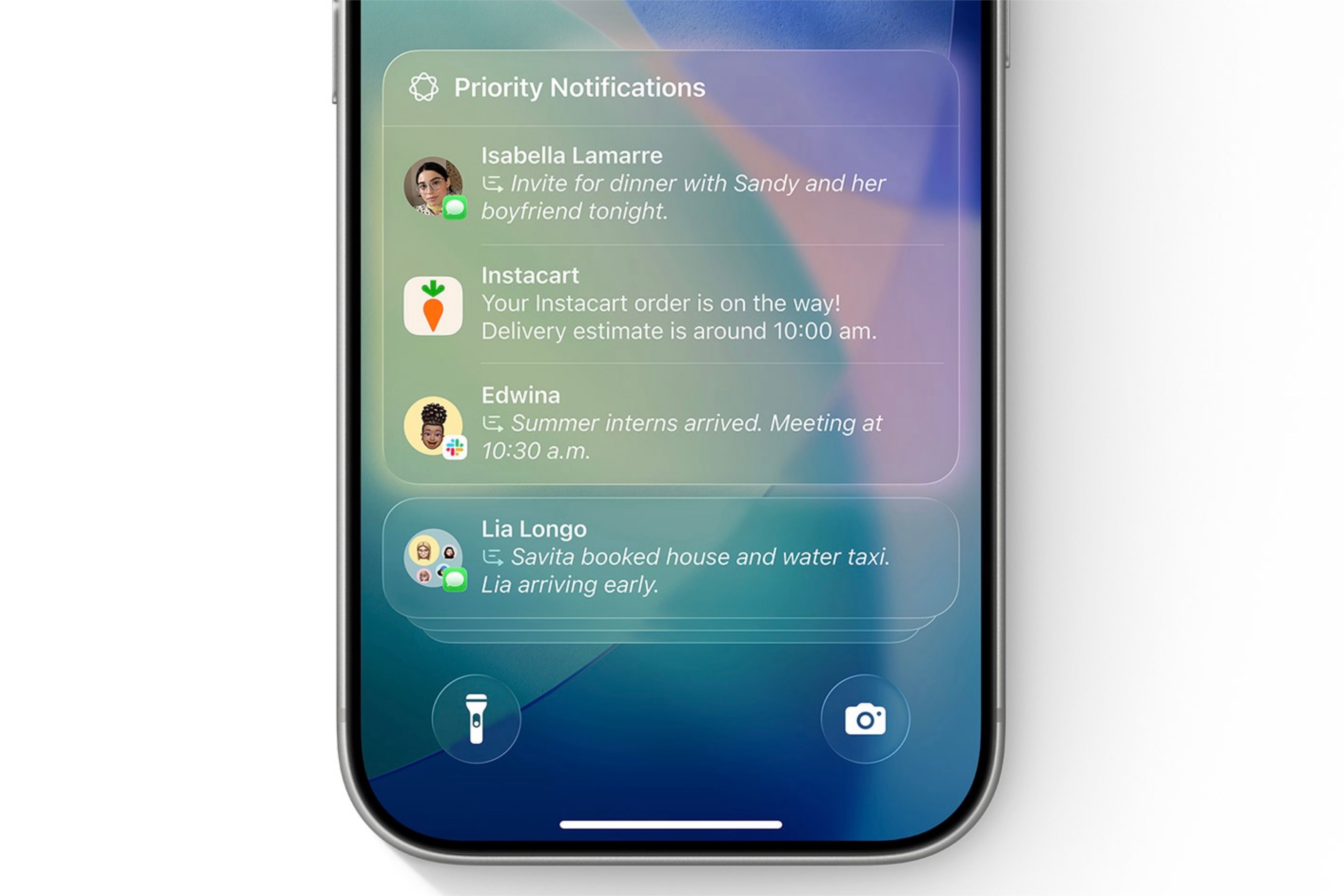
Additionally, with Apple Intelligence, priority notifications can still break through and alert me. While I could turn them off, I find them useful when needed, so I keep them enabled, even though not every notification I receive feels like a true priority.
As a result, I’m still connected to the digital world, which can be distracting. Notification or not, I know there are messages waiting in Notification Center, and I find myself checking it repeatedly when I should be focusing, especially since all it takes is a swipe on the lock screen.
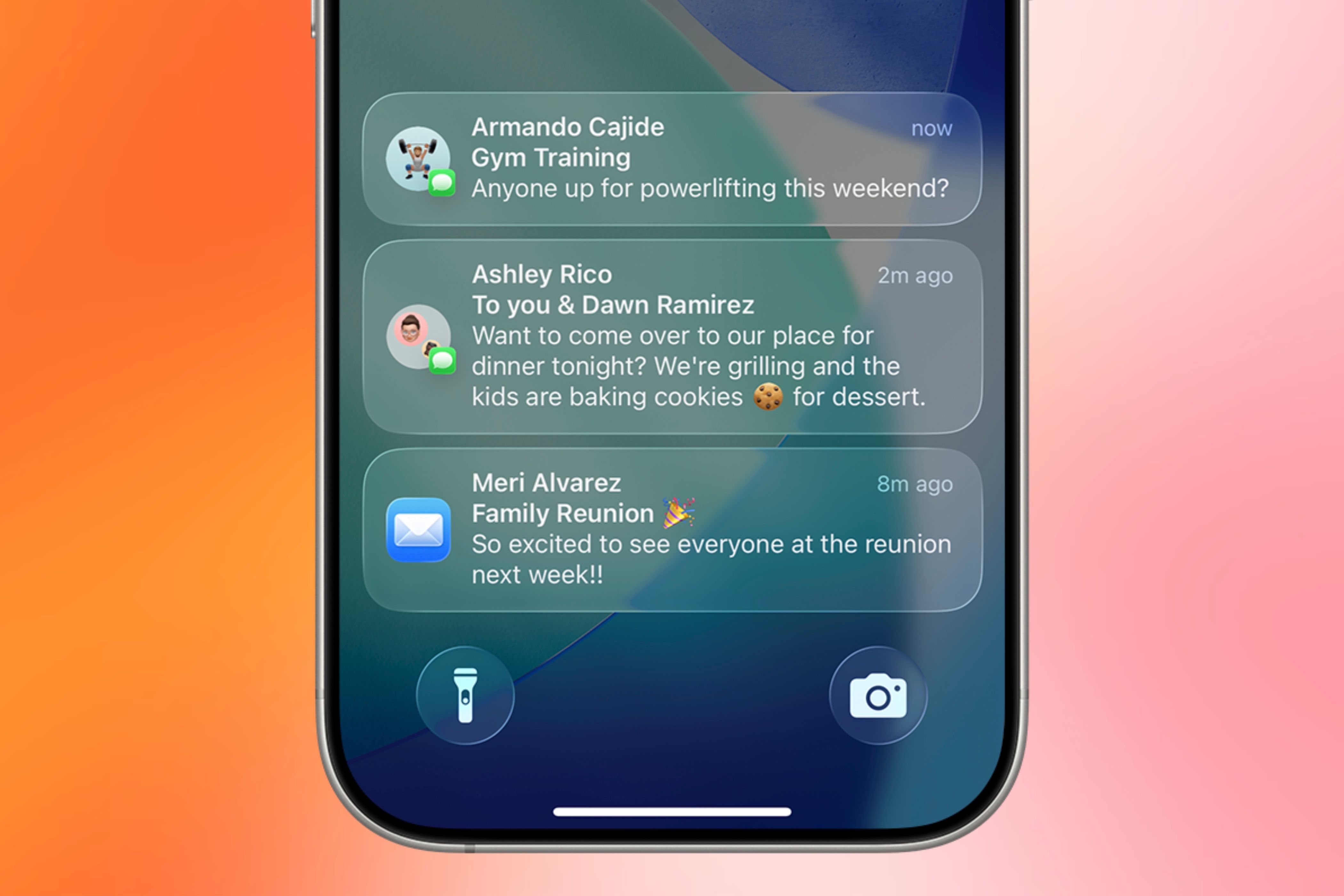
Since Do Not Disturb has some flaws, and I can still check notifications frequently, I have decided to turn on Airplane mode. While extreme, this way will fully disconnect me and keep me focused.
Airplane mode completely disconnects me
Airplane mode was initially intended for use when on an airplane during takeoff and landing. The primary purpose of the feature was safety, preventing potential interference with plane instruments during those phases of flight.
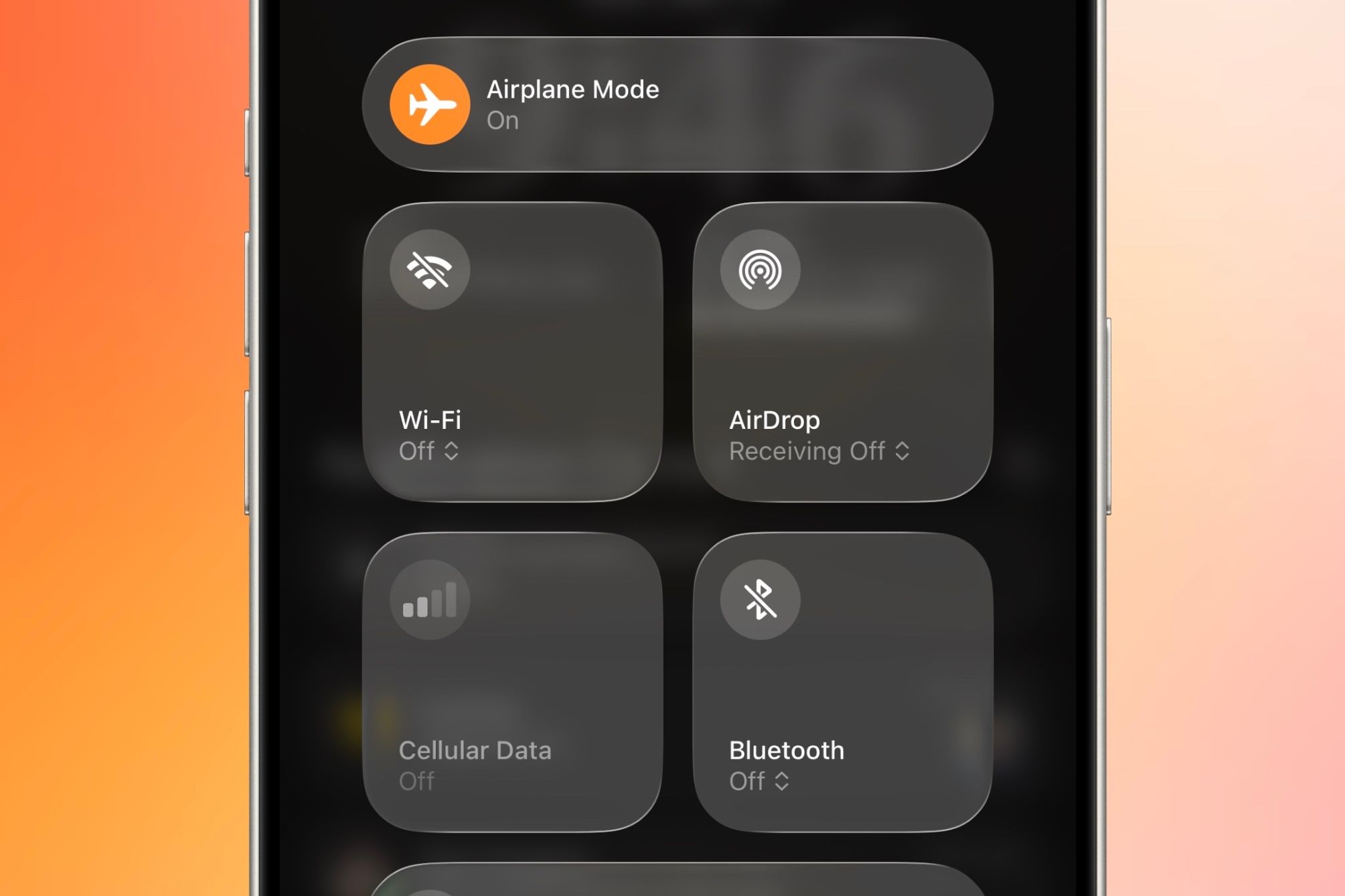
However, it has since become an easy toggle to completely turn off Bluetooth, Wi-Fi, and cellular, which can help save battery or reduce data usage. Personally, it helps me enable my digital detox by completely eliminating distractions more than Do Not Disturb can.
The problem with Do Not Disturb is that it still lets notifications come through; it just shields them from alerting you. Yet, they are still easily accessible by just swiping down to the Notification Center.
Airplane mode, on the other hand, prevents notifications from coming through because there is no network connection. This includes any alerts that require a Wi-Fi or cellular connection.
If you want to completely block calls and texts from appearing on your device, turning on Airplane mode will do the trick. You’ll be less tempted to check Notification Center because the notifications never reach your phone.
Times when I use Airplane mode over Do Not Disturb
As mentioned earlier, I can easily get distracted and check my notifications more times than I can count. I get sidetracked and lose focus because I know notifications are waiting for me or could arrive at any moment.
Turning on Airplane mode fixes this because I know most of the notifications that distract me—like texts or social media posts—will not arrive.
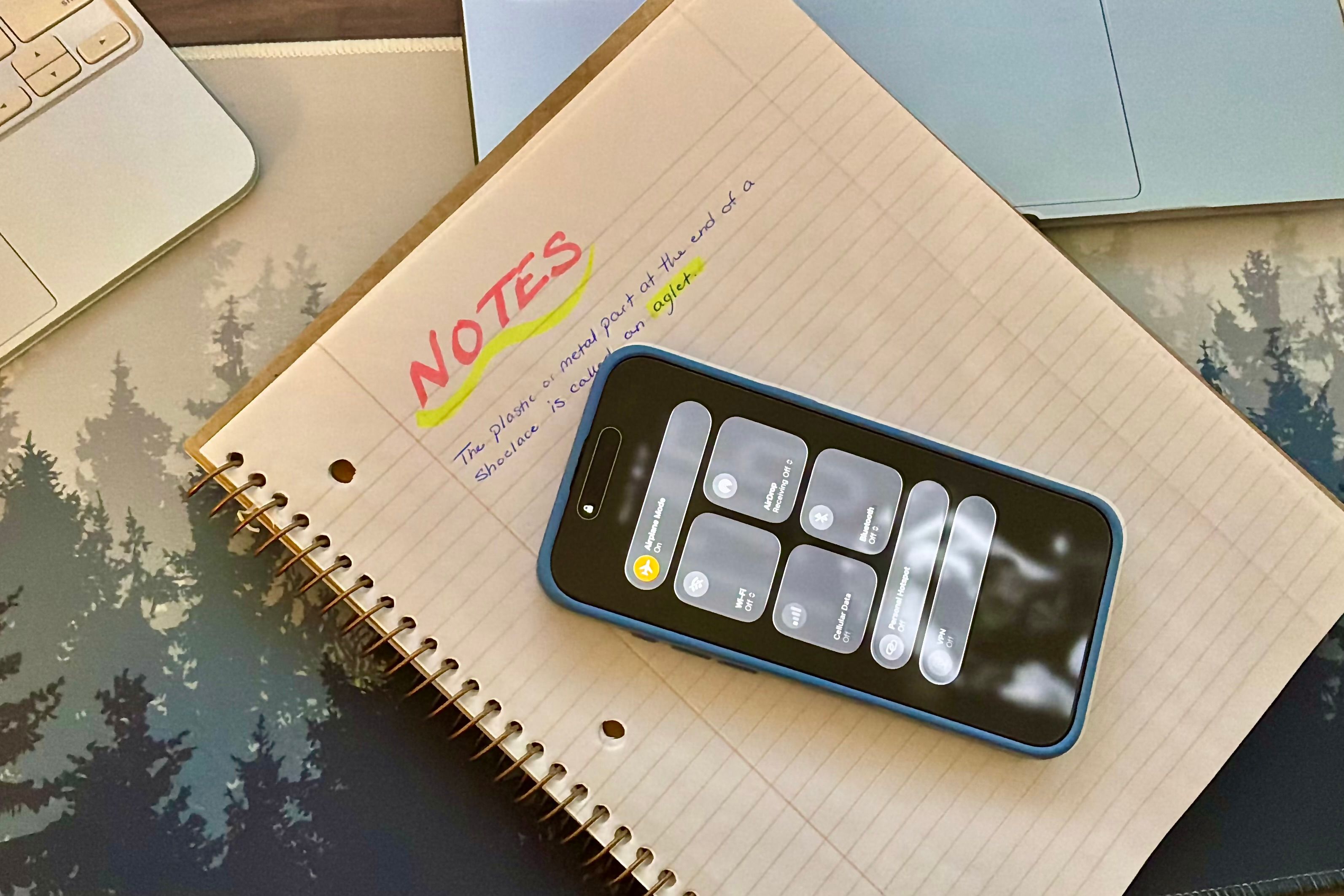
This came in handy when I was a student studying for exams. I wasn’t constantly interrupted by texts, calls, or social media notifications, so I could focus on the material I needed to retain.
Now that I’m part of the workforce, I use the same tactic to stay on top of my tasks. It also helps when I need quiet time to brainstorm new creative ideas or topics to explore.
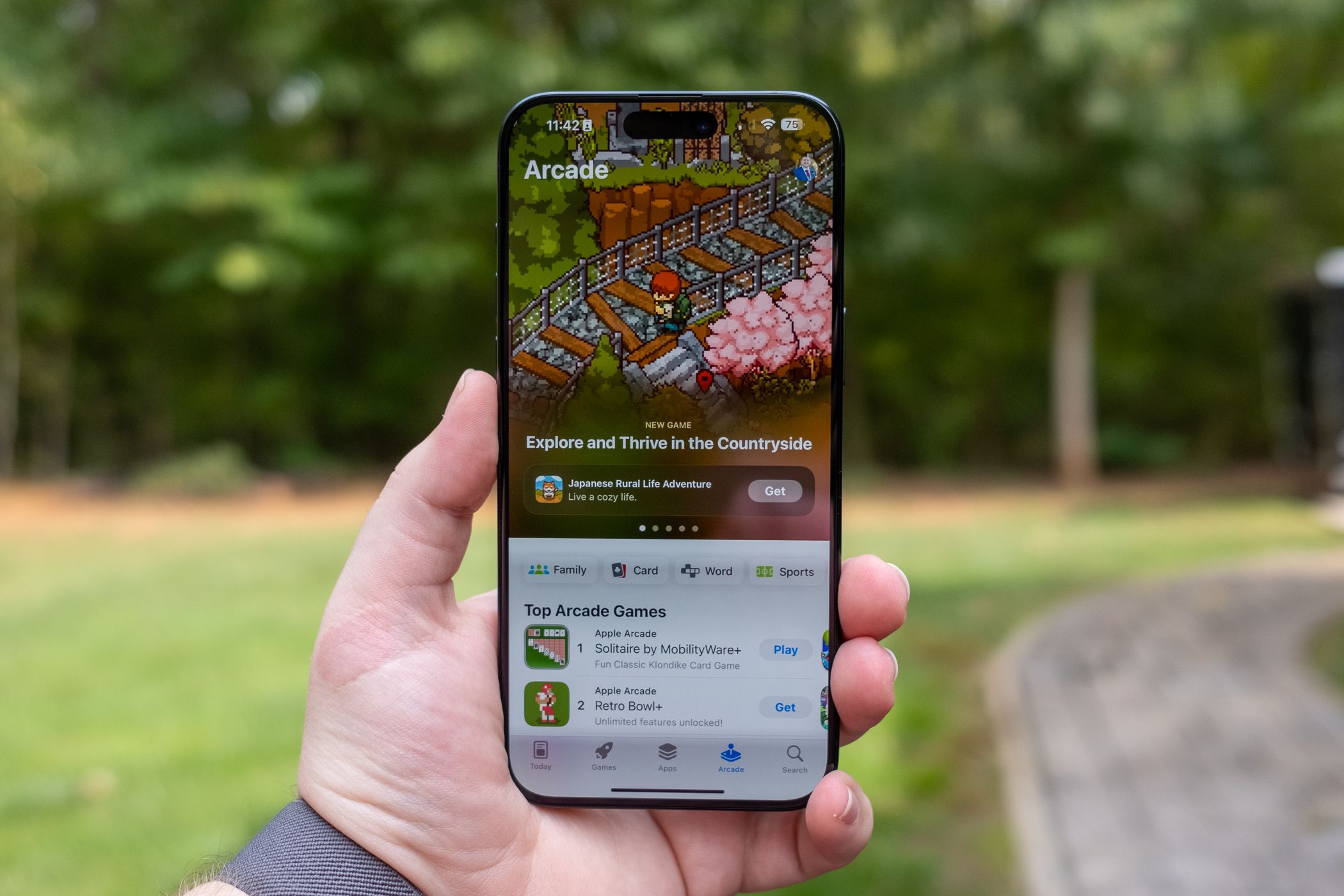
Another area where this works well is when playing games on my phone. I regularly play games from Apple Arcade because they’re ad-free and don’t require a constant internet connection, but I sometimes download games that are often promoted on TikTok or while browsing social media.
The downside of these games is the constant ads, sometimes appearing after every level, which can be irritating and make me quit altogether. To get around this, I turn on Airplane mode, which blocks ads by cutting off the internet connection, letting me play uninterrupted.
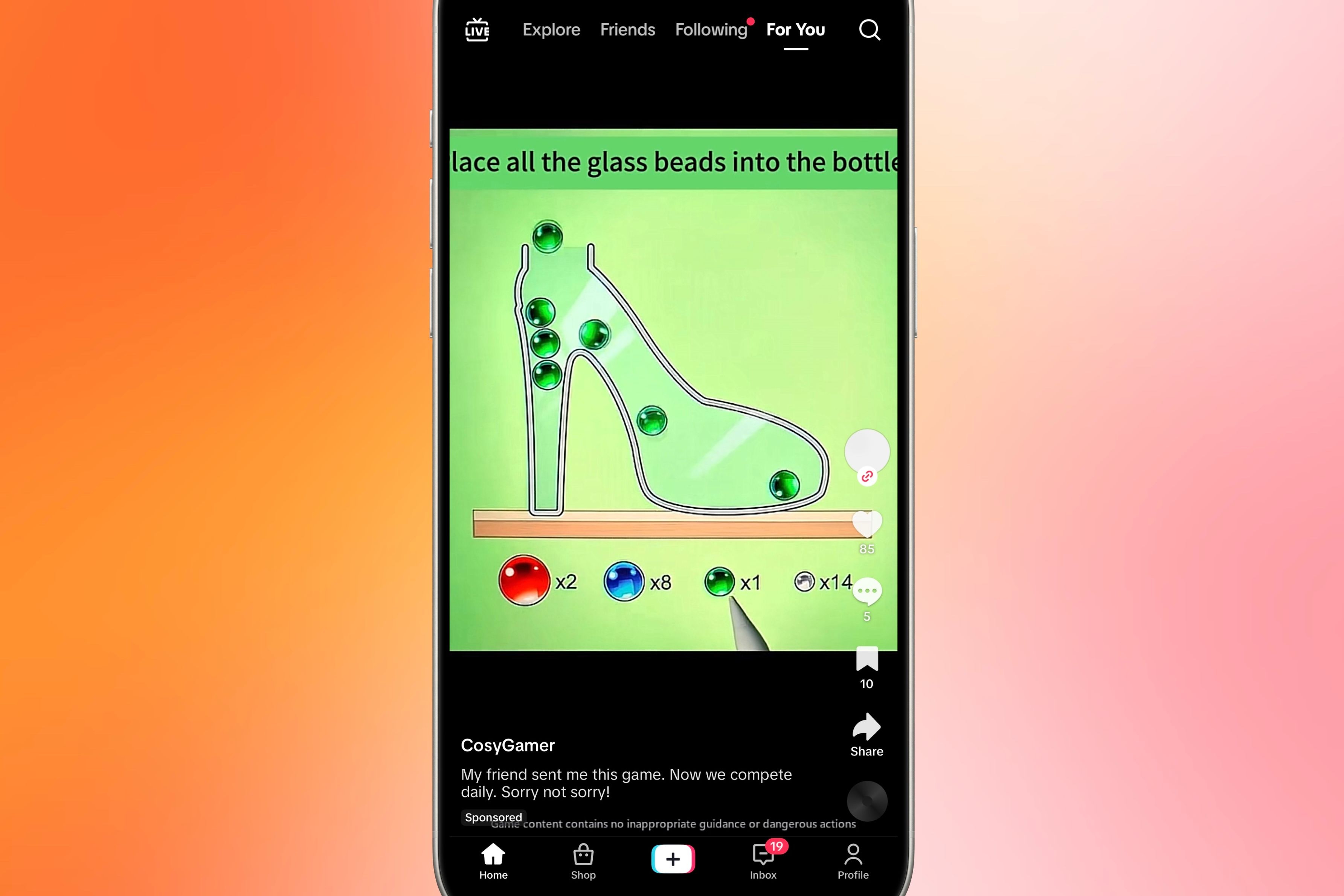
Although I’ve found this doesn’t work with every game downloaded, since some require an internet connection to play.
What to do before turning on Airplane mode
While turning on Airplane mode is as easy as tapping a single toggle, there are some steps you should take before taking off. This will help keep you and those you’re connected to prepared when the setting is enabled.
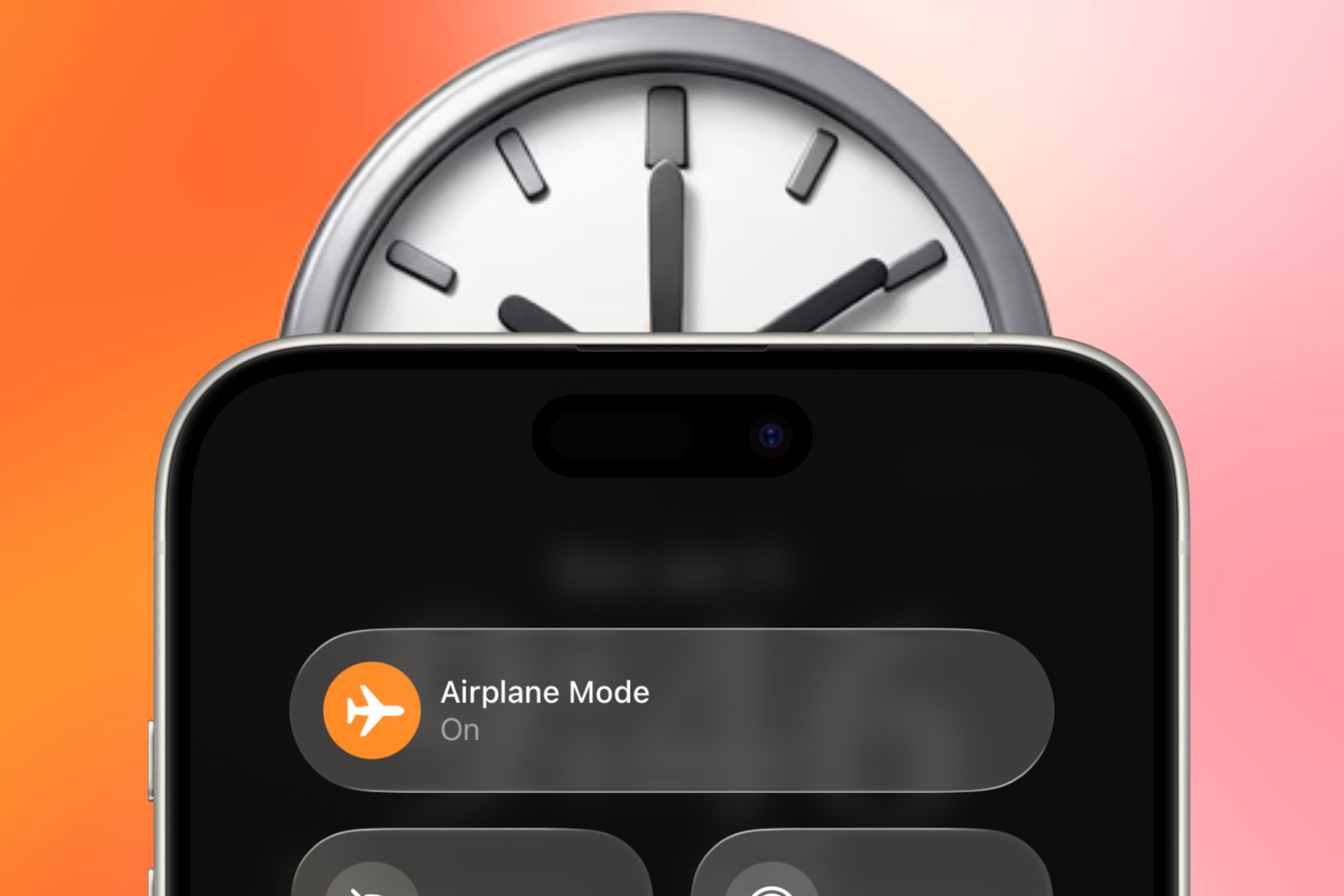
If you can, plan when you will toggle Airplane mode on. This can be when deciding to study, do an important task, or just take a digital detox.
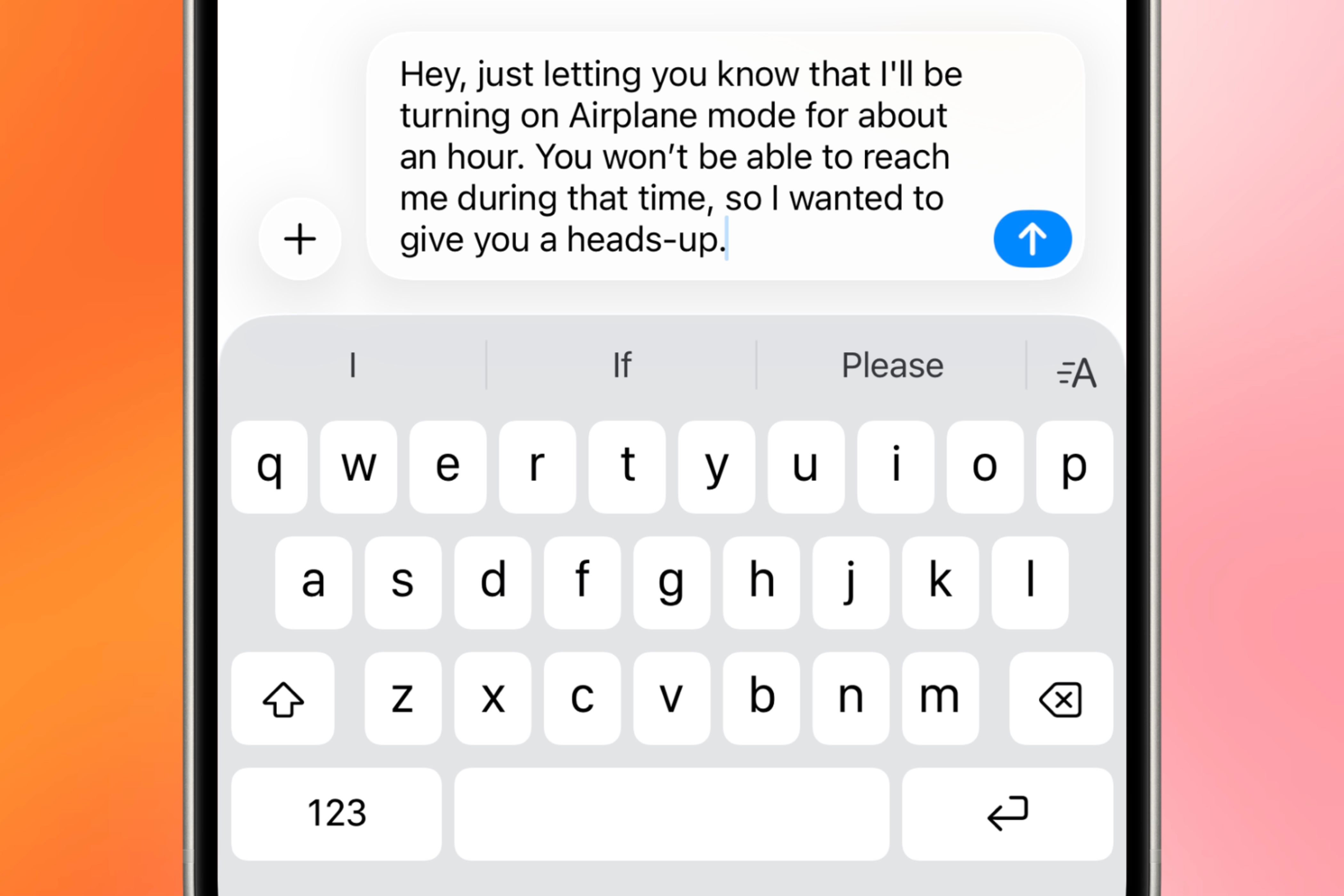
Doing this also lets you notify people who typically contact you that you may not receive their messages or calls during that time. It helps manage expectations, since they won’t be waiting for a response to a notification you never received.
If you plan to use materials that are stored online, such as files in a cloud drive, download them beforehand. You can always turn off Airplane mode if you need something that wasn’t downloaded, but expect any pending notifications to flood Notification Center once you do.
Most importantly, turn on this setting only when it’s appropriate. While Airplane mode helps me stay focused, I avoid using it when someone may need to reach me urgently, such as during a medical situation or when I’m awaiting an important phone call.
While Airplane mode is a great way to limit distractions, I use it sparingly because it disconnects me completely. There are times when I need to be reachable or in contact with others while working on tasks.
During those times, Do Not Disturb helps limit most distractions. However, when I need to eliminate all interruptions, I turn to Airplane mode, which lets me create a quiet space without the threat of multiple notifications.
